|
| | | Map cloud storage as a network drive | | Upgrade explorer to a storage portal | | Backup pictures, and more online | | Enjoy lightning fast file transfers | |
Create a Gladinet Drive to seamlessly access multiple cloud storage services using the familiar Windows® Explorer interface. Drag and drop folders or an entire drive to quickly transfer thousands of files. Access and manipulate cloud files with local applications. Automatically backup all the music, videos, pictures, or documents on your system to cloud storage. Create redundant backups to multiple providers.
Gladinet is free or payed
http://www.gladinet.com/ 
Updated: 3rd June 2009 – to cater for Gladinet moving out of Beta and changed instructions to use the free version with updated screenshots and instructions.
Recently I talked about Windows Live SkyDrive, a facility that allows you up to 25gigs of storage space for free. The storage space is available anywhere and while its an excellent facility, it can get cumbersome dealing with uploading files and working through the web based interface.
Ideally, you want to have a folder structure set up on your computer so that you can just navigate through your SkyDrive just like you do any of your other hard drives. Gladinet is a cloud based service that does just that. It brings online applications and storage to your local machine.
Gladinet is a fully featured service that allows for (amongst others):
- Drive “mounting” (act of setting up an online storage like SkyDrive or Picasa or Google Docs as local hard drives)
- A Cloud based desktop that enables users to use online applications to work on local files.
- Task schedulers to cater for scheduled transfers of data (eg as backup)
- Smart file transfers that allows for encryption, compression and reliability.
- It allows you to upload images without resizing!! (If you use the web interface to upload images, they get resized automatically – this way it treats image files as data, so SkyDrive doesn’t resize or constrain the image in any way).
What we will do today is use Gladinet to “mount” our SkyDrive so that it is available on My Computer.
Prerequisites
you have an existing SkyDrive account. Easy enough to do if you follow my earlier guide: Microsoft SkyDrive – 25 gigs of space for free!
Step 1
The first step would be to download Gladinet onto your machine and install it. There are two versions available on the website (http://www.gladinet.com): a Free Starter one and a Professional Edition. The Professional Edition is on a limited introductory offer, but as it costs money, I will use the free version You can download either of them on the following page: Gladinet Editions Download Page. There is a version for both 32bit and 64bit operating systems (sadly no Linux).

Step 2
Once downloaded, complete the installation process. Select all the defaults (you may wish to change the install location, but apart from that, all else should be as normal).
When you launch the application for the first time, you’ll have an initial “Run Once Initial Settings” for the Cloud desktop.

Here, choose a drive letter that you want to assign to Gladinet and hit OK. In my case I chose “R” as my drive. Leave everything else as is and hit OK.
Important!
If you are running a server operating system (or one which has IIS running), you may get a message that states that Port 80 is being used already. It will ask to install a virtual adapter. Click Yes.

At this point, the Gladinet Virtual Driver will be installed.
If you continue to have an issue installing the virtual adapter, there is a troubleshooting guide in the install folder\WosHome called “GladinetTroubleShoot.pdf”. It may help resolve issues around Gladinet behaving with applications that also use Port 80 (such as Skype or IIS).
In my case, I changed my unassigned port on my local web server to port 81 and it worked fine. There are ways to preserve port 80 and have Gladinet coexist with your web server. Its detailed in the Troubleshooting guide.
Step 3
Assuming you have any possible conflict resolved, Gladinet will start. You can tell from a taskbar mini icon it will place on your start bar and it should show you an initial menu screen.

Click on “Mount Disk Storage or Web Storage As Virtual Directory”
Step 4
This will open up the Virtual Directory Manager.

As we’re adding SkyDrive, select “Windows Live SkyDrive” as the Service Provider.
The dialog box will change slightly to collect your SkyDrive credentials:

At this point you can create a “safe card” (refer to Gladinet for details) or just type in your SkyDrive credentials and click on Add.
Your username is your Windows Live Id (usually same as your MSN Messenger or Hotmail Id)
It will take a while to create the virtual directory and progress will be shown at the bottom of the screen. You may get a “Loading Online Storage Plugin” agreement dialog box. Hit Yes to this.
Step 5
Once its finished, a new Windows Explorer window will open up and show you the contents of your SkyDrive!

At this point you can navigate through the folders just like any other folder on your computer. If you happen to close your Windows Explorer, opening up My Computer later will show you the drive under Network Location (Vista) or Network Drives (Windows 2003).
You can also open up your drives by right clicking the Gladinet mini icon and selecting your drive

Via the same method, I managed to add Google Picasa as well as Google Docs to Gladinet as well.
When you drag a file into your SkyDrive, (if you chose the professional edition), you will be asked if you want to upload immediately or schedule it for later. Additionally, right-clicking on an “office” type document will display and option to read it in an appropriate viewer.
Conclusions
As a simple drag and drop access to your online storage, it does what’s asked of it. It gave me a network drive that allowed me to access my online data stores and i can easily upload and download documents to and from my drives.
Currently, its one of the best ways to really make use of SkyDrive without having to go through a web explorer.
You can continue to explore Gladinet on your own by right clicking its mini-icon and checking out the various options.
from: http://www.newbtech.com/

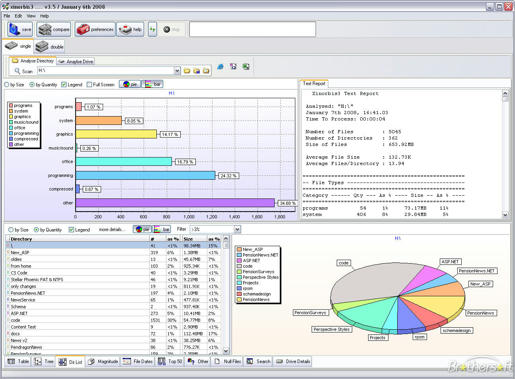
 analyse a single drive, folder or merge several together in one report


 Posts
Posts

